

The WordPress database plays a crucial role in determining your website’s speed and stability, and one of the most overlooked components is the wp_options table. Over time, unused plugins, poorly coded themes, and excessive settings can overload this table with unnecessary autoloaded entries. Learning how to clean up wp_options autoloaded data is essential for improving site performance without risking functionality. When this data grows unchecked, it increases memory usage and slows server response times. By taking a safe and strategic approach, you can clean up wp_options autoloaded data and keep your database optimized, stable, and lightweight without breaking your site.
10 Key Areas That Help You Optimize Autoloaded Data
1. Understanding Autoload in WordPress
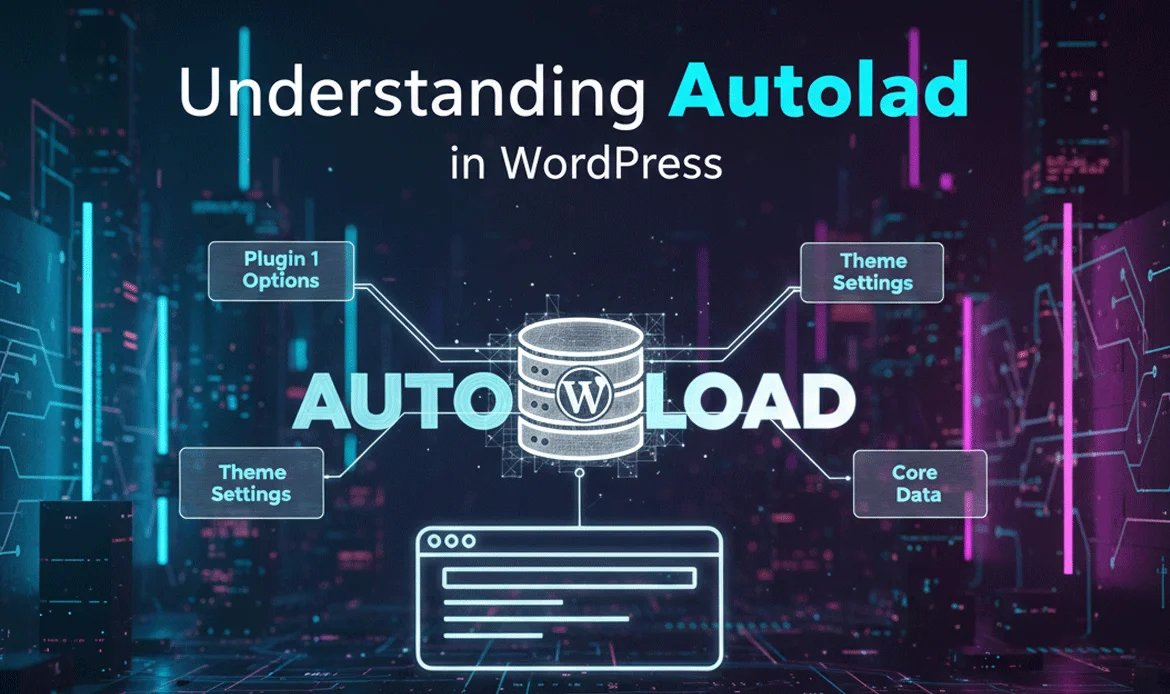
Autoloaded data in WordPress refers to the settings stored in the database that are loaded automatically every time a page is requested. This data is stored inside the `wp_options` table and marked with a value of “yes” under the autoload column. While autoload helps essential site settings load faster, too much of it can quickly become a burden. Many plugins and themes store configuration settings here, and when those tools are no longer in use, their stored data often remains behind.
2. How Plugins Inflate Autoloaded Entries

Plugins are a major contributor to database bloat because many of them save large data arrays inside the `wp_options` table with the autoload feature enabled by default. Over time, as plugins are updated, replaced, or removed, their old records are rarely deleted automatically. This causes unnecessary growth in your database size. Cache plugins, page builders, and SEO plugins are often among the top contributors to bloated options tables. As your site grows, it becomes essential to clean up wp_options autoloaded data created by inactive or deleted plugins.
3. Impact on Website Speed & Server Memory

When WordPress loads autoloaded data, it inserts everything into memory on every page load, including unused or outdated data. This directly increases page load time and puts extra pressure on the server’s RAM and CPU. Large autoloaded records can even trigger 500 errors on shared hosting environments. By choosing to clean up wp_options autoloaded data, you reduce the total amount of information being processed during each page request.
4. Identifying Heavy Autoload Records

Not all autoloaded data needs to be removed, but large and outdated records should be reviewed. Tools like phpMyAdmin and database management plugins allow you to sort entries by size, revealing which options consume the most space. Often, serialized data from page builders, backup tools, and tracking plugins can be found here. When you successfully clean up wp_options autoloaded data, you are essentially removing dead weight from your database.
5. Safe Removal Without Breaking Functionality

Removing the wrong option from the database could break core functionality, cause layout errors, or disable active plugins. That’s why a careful, documented approach is required. Before deleting anything, always take a full database backup. A safer method to clean up wp_options autoloaded data is to change the autoload value from “yes” to “no” for non-essential records instead of deleting them.
6. Using Database Optimization Tools

Several trusted WordPress optimization tools help automate database cleanup safely. These plugins scan for unused, orphaned, and oversized records that can be removed with a single click. They also allow scheduled optimization, which helps you regularly clean up wp_options autoloaded data without manual effort. Beyond option table cleanup, these tools optimize revision data, trashed posts, spam comments, and transient records, giving your site a complete performance boost and a cleaner backend environment.
7. Scheduling Regular Maintenance

Websites are dynamic, and data is added every day through user actions, plugin activity, and content updates. Because of this, database optimization should be part of your regular website maintenance plan. When you set a monthly or quarterly reminder to clean up wp_options autoloaded data, you prevent future slowdowns and keep your database lean. Consistent maintenance also reduces the chances of unexpected crashes or database-related errors, especially on high-traffic WordPress sites.
8. Monitoring After Cleanup

Once the cleanup process is complete, your next priority should be close performance monitoring. Test important functions such as menus, contact forms, checkout systems, login pages, and dashboards. Use tools like PageSpeed Insights or GTmetrix to measure improvements. This final check confirms that your effort to clean up wp_options autoloaded data has resulted in faster response times, improved site stability, and a better experience for your site visitors.
9. Preventing Future Bloat

Prevention is always better than repair. Choose lightweight plugins and remove any tool that is no longer in use. Regularly review your installed plugins and themes list and avoid adding unnecessary features. When you build good habits and remain cautious with third-party extensions, you won’t need to frequently clean up wp_options autoloaded data in the future. This proactive approach helps keep your WordPress environment efficient, secure, and future-ready.
10. Combining Cleanup with Performance Strategy

While database cleanup is powerful, it works best when combined with other performance strategies like caching, CDN usage, image optimization, and script minification. Together, they create a balanced ecosystem for speed and reliability. When your broader strategy includes proper hosting, optimized themes, and the habit to regularly clean up wp_options autoloaded data, your WordPress site becomes significantly faster, more stable, and better optimized for SEO and user engagement.
WordPress Autoload Data Cleanup – FAQs
Is it safe to clean the wp_options table?
Yes, it is safe when done carefully. Always take a backup and remove only unnecessary or orphaned entries.
How often should I perform database cleanup?
It is recommended to perform this maintenance every 2–3 months, or after removing major plugins.
Will this improve SEO?
Yes. A cleaner database improves speed which positively impacts rankings and user engagement.
Can beginners do this?
With optimization plugins and clear guides, even beginners can manage it carefully.
Conclusion
Keeping your WordPress database clean is one of the smartest moves for long-term stability and performance. When you regularly audit and update your site’s database, you eliminate wasted resources and reduce server load. Taking time to clean up wp_option autoloaded data contributes to faster loading speeds, better SEO results, and a smoother user experience. For any serious website owner, database hygiene should be part of their ongoing optimization strategy not an afterthought.
Speed Up Your Website with Our Optimized WordPress Themes
Ready to build a faster, cleaner, and more powerful website without worrying about database overload? Our premium WordPress themes are built with performance-first architecture, optimized code, and minimal autoloaded data usage. Whether you’re creating a business site, portfolio, or eCommerce store, our themes give you built-in speed, SEO-friendly structure, and smooth scalability.